
Key Takeaways
- The hub-and-spoke federation pattern – connecting Okta to one central OCI tenancy and federating all other tenancies through it – eliminates the need to maintain a separate Okta application per tenancy, regardless of how many tenancies your organization operates.
- A dedicated OCI tenancy for the hub role is an architectural boundary that removes ambiguity during compliance and security reviews, and avoids the current limitations of OCI cross-tenancy policy scoping.
- The entire setup uses only the Free tier OCI identity domain and SAML 2.0, both of which are included with every OCI tenancy by default, so no additional licenses or domain upgrades are required to implement this pattern.
- Cross-tenancy IAM policies must be explicitly configured in both the hub tenancy and each spoke tenancy – an endorsement without a corresponding admission, or vice versa, will silently fail and is the most common troubleshooting point in this setup.
- The Okta group naming convention you define before starting the configuration becomes the access control model for your entire OCI organization – changing it later means reconfiguring group mappings across every tenancy, so it is worth getting right at the beginning.
Architecture
The general best practice for enterprise identity management (IdP) is simple – one IdP for the whole organization. Users authenticate once, through a single corporate IdP like Okta, and that authentication is trusted across all systems and environments. This is the foundation of federated SSO, and it works well when you have one environment to connect.
The challenge appears when infrastructure grows. In Oracle Cloud Infrastructure (OCI) Multi-tenancy Architecture, each tenancy is an isolated environment with its own identity domain. The standard approach is to connect Okta to each tenancy separately. Each connection is its own SAML 2.0 application, its own group mapping, its own configuration to maintain. Three tenancies are manageable, but dozens of tenancies are not.
The right solution is to keep the single IdP principle intact and solve the multi-tenancy layer at the OCI level, not at the Okta level. That is exactly what the hub-and-spoke pattern does, and it is what we built during implementation of a unified multi-cloud approach across OCI and AWS.
Instead of Okta connecting to each OCI tenancy directly, it connects to one OCI hub tenancy. All other tenancies connect to this OCI hub tenancy, not to Okta. This means one Okta application, one group naming convention, and one place to manage users, regardless of how many tenancies you operate.
The authentication flow works as follows. A user opens any spoke OCI tenancy console, gets redirected to the OCI hub identity domain, which redirects to Okta. The user authenticates once. Okta sends a SAML 2.0 assertion to the hub, the hub maps the user to the correct OCI groups, then passes its own assertion to the spoke tenancy. Two SAML handshakes happen behind the scenes, but the user simply logs in once and lands in the console.
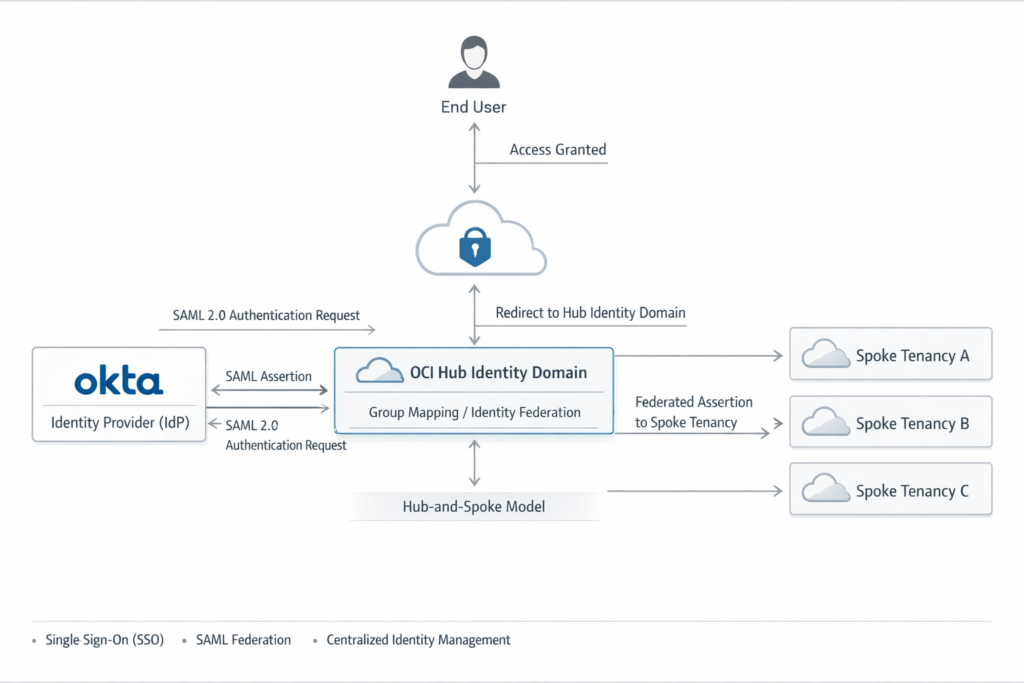
This guide uses the Free tier OCI identity domain and SAML 2.0 throughout – both are included with every OCI tenancy by default, and no additional licenses are required. Starting from the hub tenancy setup in Okta, you will go through each configuration step: connecting Okta to the hub identity domain, federating spoke tenancies to the hub, and writing the cross-tenancy IAM policies that make access control work. Each step includes screenshots from a real working configuration.
Prerequisites
Before starting, make sure you have the following in place.
A working Okta integration with your hub tenancy. This article focuses on the multi-tenancy federation layer and does not cover the initial OktaOCI setup. If you have not done this yet, both Okta and Oracle publish official step-by-step documentation for this part. Complete that first and verify that SSO into the hub tenancy works before continuing here.
A dedicated tenancy for the hub role. The hub tenancy should be a separate, standalone OCI tenancy, not a shared environment that also runs workloads. This is a personal recommendation based on practical experience. At the time of writing, OCI cross-tenancy IAM policies don’t support fine-grained permission scoping for the endorsement layer. A dedicated hub tenancy removes that risk cleanly and also simplifies any compliance or security review process, because the boundary between identity management and workload infrastructure is clear and unambiguous.
Administrator access in all tenancies involved. You need Identity Domain Administrator privileges in the hub tenancy and in each spoke tenancy to configure SAML identity providers, group mappings, and IAM policies. Confirm this access before starting – some steps cannot be completed or easily rolled back without it.
Export the Hub Tenancy SAML Metadata
This file is the starting point for every spoke tenancy you will connect. You only export it once from the hub, then reuse it across all spokes.
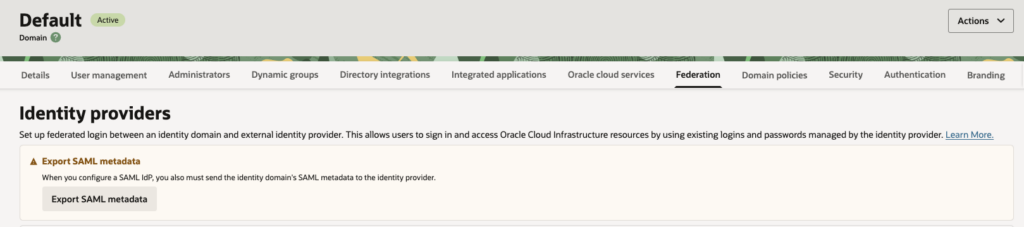
In the hub tenancy, navigate to Identity & Security → Domains → Default → Federation tab. Click Export SAML metadata and download the Metadata XML file with self-signed certificates. This file tells each spoke tenancy who the hub is – its entity ID, its endpoints, and its signing certificate.
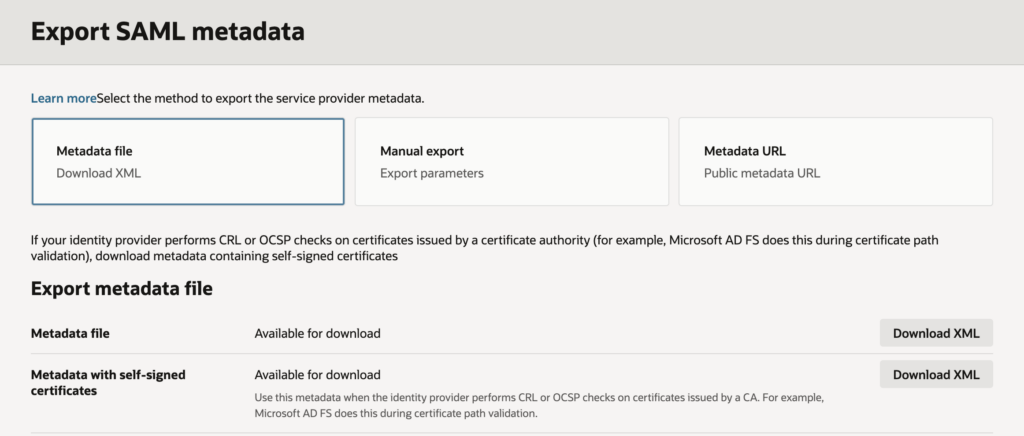
Keep this file somewhere accessible. You will upload it to every new spoke tenancy you add.
Add the Hub as a SAML Identity Provider in the Spoke Tenancy
This step runs in the spoke tenancy. You are telling the spoke to trust the hub as its authentication source.
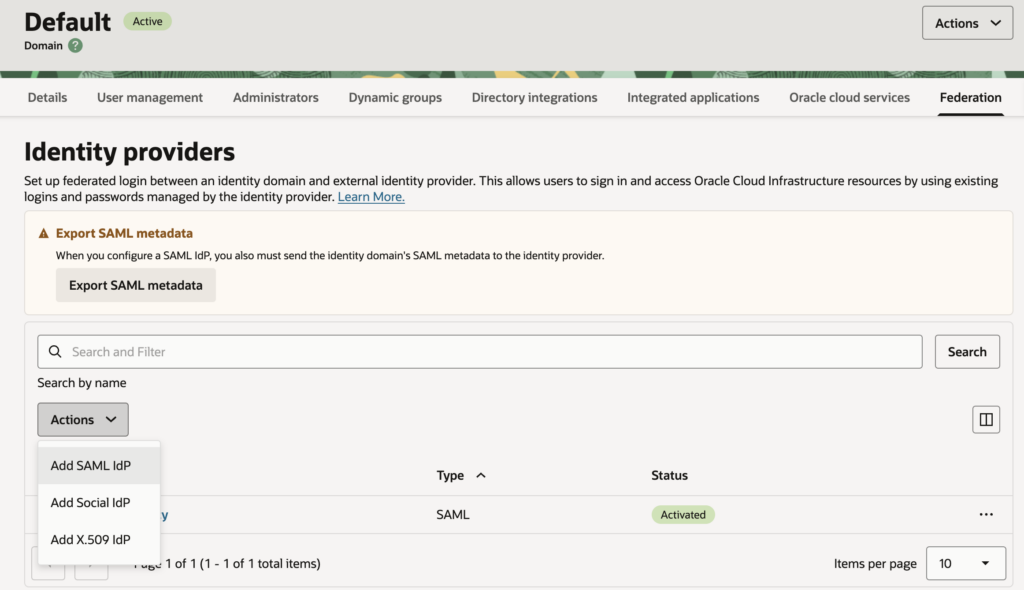
Navigate to Identity & Security → Domains → Default → Federation tab. Before adding the hub as an IdP, first export the spoke’s own metadata – click Export SAML metadata and download the Metadata XML file with self-signed certificates. You will need this file in the next step when you go back to the hub.
Now in Identity providers block click Actions → Add SAML IdP. Set the name to, for example, AuthByHub – this is the name that will appear on the spoke’s login page, so make it recognizable. Click Next, select Import IdP metadata, and upload the Metadata XML file you exported from the hub in previous step.
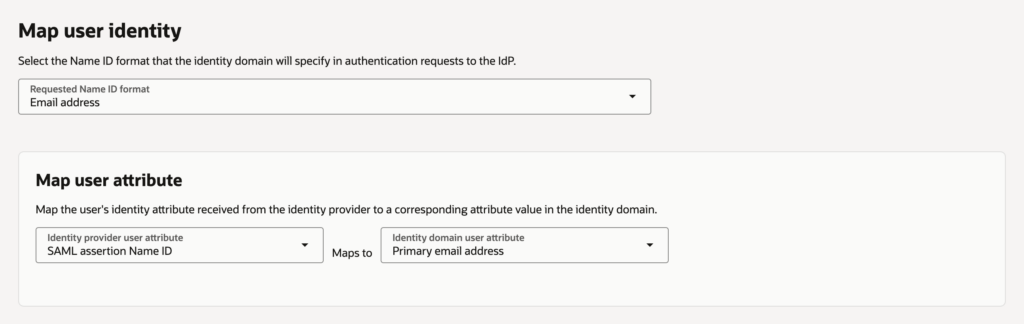
On the user identity mapping screen, set the following:
- Requested Name ID format: Email address
- Identity provider user attribute: SAML assertion Name ID
- Identity domain user attribute: Primary email address
Click Next, then Create IdP, and then click Activate.
Get the Spoke’s Service Provider Metadata
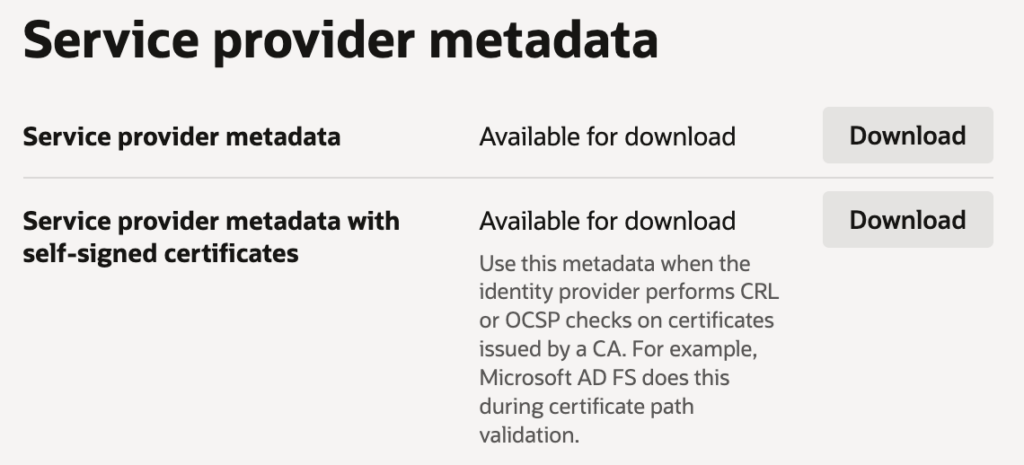
After activating the IdP, the spoke generates its own service provider metadata that includes the correct ACS URL and a self-signed certificate. You need this to configure the hub side.
In the spoke tenancy, click on AuthByHub → Details tab → Service provider metadata section. Download Service provider metadata with self-signed certificates. This is the file you will use in the next step.
Create a SAML Application in the Hub for This Spoke
Go back to the hub tenancy. For every spoke tenancy you add, you create one dedicated SAML application in the hub. This is what makes the trust relationship work in both directions.
Navigate to Identity & Security → Domains → Default → Integrated applications tab. Click Add application and select SAML Application. Give it a clear name that identifies the spoke, for example, Production. Leave all URL fields empty for now and click Submit.
On the application details page, open the SAML SSO configuration tab and click Edit SSO configuration. Now fill in the values from the spoke metadata XML you downloaded in previous step:
- Entity ID: https://idcs-<spoke-idcsid>.identity.oraclecloud.com:443/fed
- Assertion consumer URL: https://idcs-<spoke-idcsid>.identity.oraclecloud.com/fed/v1/sp/sso
- Name ID format: Email address
- Name ID value: Primary email
- Single logout URL: https://idcs-<spoke-idcsid>.identity.oraclecloud.com/fed/v1/sp/slo
- Logout response URL: https://idcs-<spoke-idcsid>.identity.oraclecloud.com/fed/v1/sp/slo
For the signing certificate, you need to extract it from the spoke metadata XML. Open the file, find the content inside the tags, wrap it with —–BEGIN CERTIFICATE—– and —–END CERTIFICATE—–, save it as a .pem file, and upload it here.
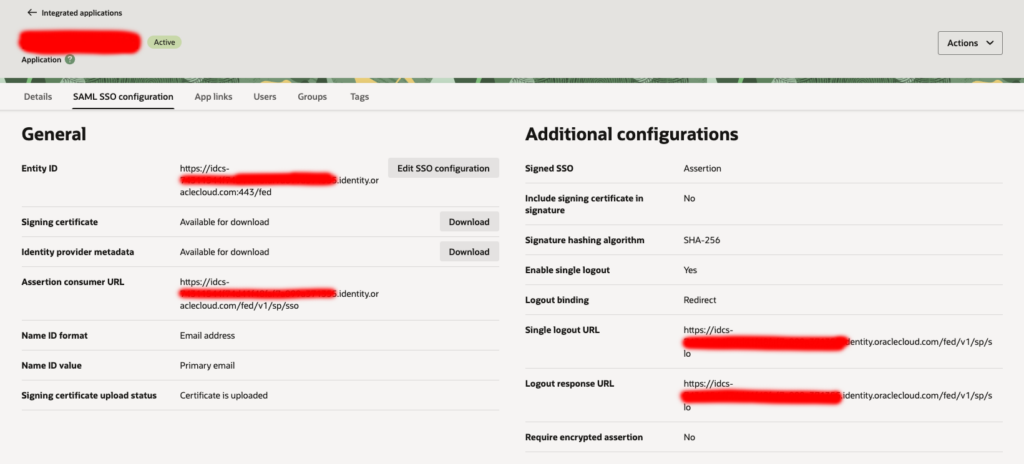
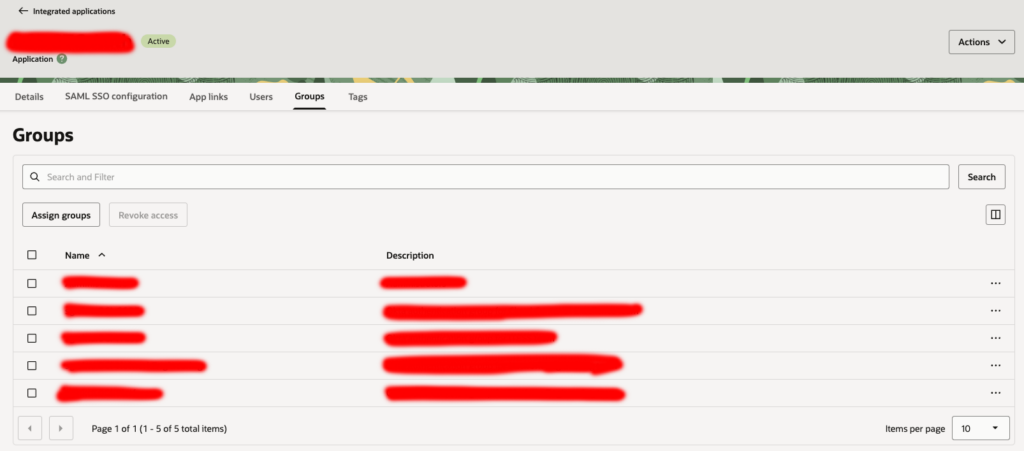
Save the configuration, then click Actions → Activate. Finally, open the Groups tab, click Assign groups, and add all groups whose users need access to this spoke tenancy.
Add the Hub IdP to the Spoke’s Default IdP Policy
Back in the spoke tenancy, the IdP is active but not yet enforced as the login method. This step makes it the default.
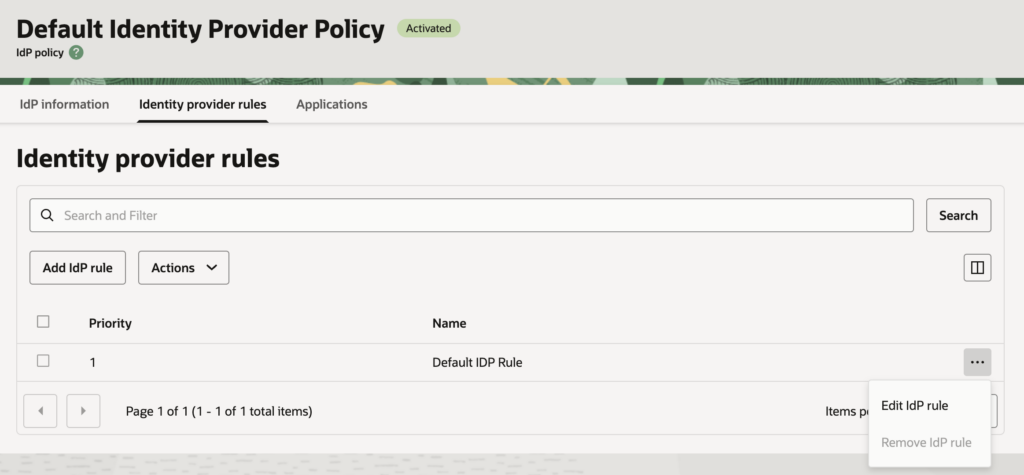
Navigate to Federation tab → Identity provider policies → Default Identity Provider Policy → Identity provider rules tab. Click the … menu next to Default IDP Rule and select Edit IdP rule. In the Assign identity providers dropdown, add AuthByHub. Keep Username-Password as a fallback – this preserves access for any local break-glass administrator accounts. Click Save changes.
Pre-create Users in the Spoke Tenancy
The Free tier OCI identity domain does not support Just-in-Time (JIT) provisioning. This means users must exist in the spoke tenancy before they can log in. Upgrading to the Oracle Apps Premium domain type enables JIT, which creates users automatically on first login, but that is outside the scope of this guide.
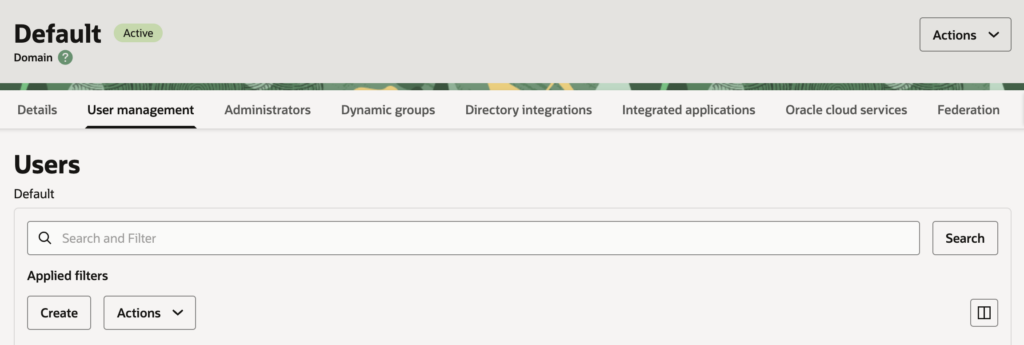
For the Free tier, navigate to Identity & Security → Domains → Default → User management tab → Users. Click Create user for each person who needs access. The username and email must match the user’s Okta login email exactly – this is how the SAML assertion maps to the correct OCI user. Assign each user to the appropriate groups.
User management at scale – creating users, assigning groups, and keeping everything in sync across multiple tenancies – quickly becomes a burden if done manually. I highly recommend automating this part using whatever tools your organization already has in place. Terraform, Ansible, or any other tool from your existing tech stack will make ongoing user and group management significantly easier than maintaining it by hand.
Please remember that users should be created in the Hub Tenancy and in all Spoke Tenancies to which the user should have access. Access rights within each tenancy can be managed using OCI user policies.
User Policies
Getting the IAM policy right is one of the less obvious parts of this setup, and it is easy to get wrong.
In OCI IAM Identity Domains, all-resources is an aggregate resource type that does not include identity domain management operations. This matters for the cross-tenancy authentication flow, because when a user authenticates through the hub, OCI needs to perform identity domain operations on their behalf – session token issuance, group mapping resolution – and these are write-level actions on the identity domain, not read actions on resources.
This has a direct consequence for how you write policies. manage all-resources works because it implicitly includes manage identity-domains. read all-resources does not include any identity domain write permissions, so authentication fails silently at the session issuance step. If your federated users can reach the login page but cannot complete authentication, an incorrectly scoped policy is the first thing to check.
The minimum policy statement required in the hub tenancy for the federated authentication flow to work is:
statements = [
  "Allow group <group name> to manage identity-domains in tenancy",
]
OCI does not currently offer a more granular option at the tenancy level for this. The session and token issuance operations map to domain management verbs, so manage identity-domains is both the minimum and the only correct choice. There is no narrower permission that covers it.
Test the End-to-End Flow
Always test using an incognito browser window to avoid any cached session interference.
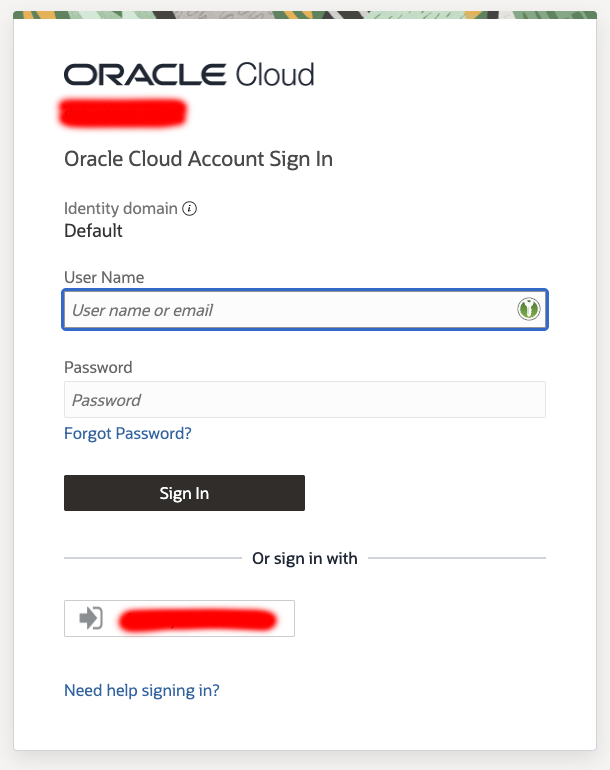
Open the browser and navigate directly to the spoke tenancy URL: https://cloud.oracle.com/?tenant=<tenant-name>
On the login page, select AuthByHub. You are redirected to the hub tenancy login page. Click Okta, authenticate including MFA if configured, and you land in the spoke tenancy console.
One important rule: always start from the spoke tenancy URL, not from the Okta app tile. Clicking the OCI tile in Okta directly takes the user to the hub tenancy only, not to any spoke. This is SP-initiated flow, and it is the only supported path in this setup.
As a potential workaround, Okta allows you to add an application with a static URL, which can be used to provide access in a unified way, or to create a static page with a list of tenancies on an S3 bucket.